Run a Group Medals night
5 min read
Group Medals is a Groups tournament without a shared final. Every group is its own small tournament: everyone in it plays everyone, and the group hands out its own gold, silver and bronze.
It suits mixed-ability clubs well: three people in every group go home with a medal, instead of the same few winning every week.
Start — choose Groups, then Group Medals
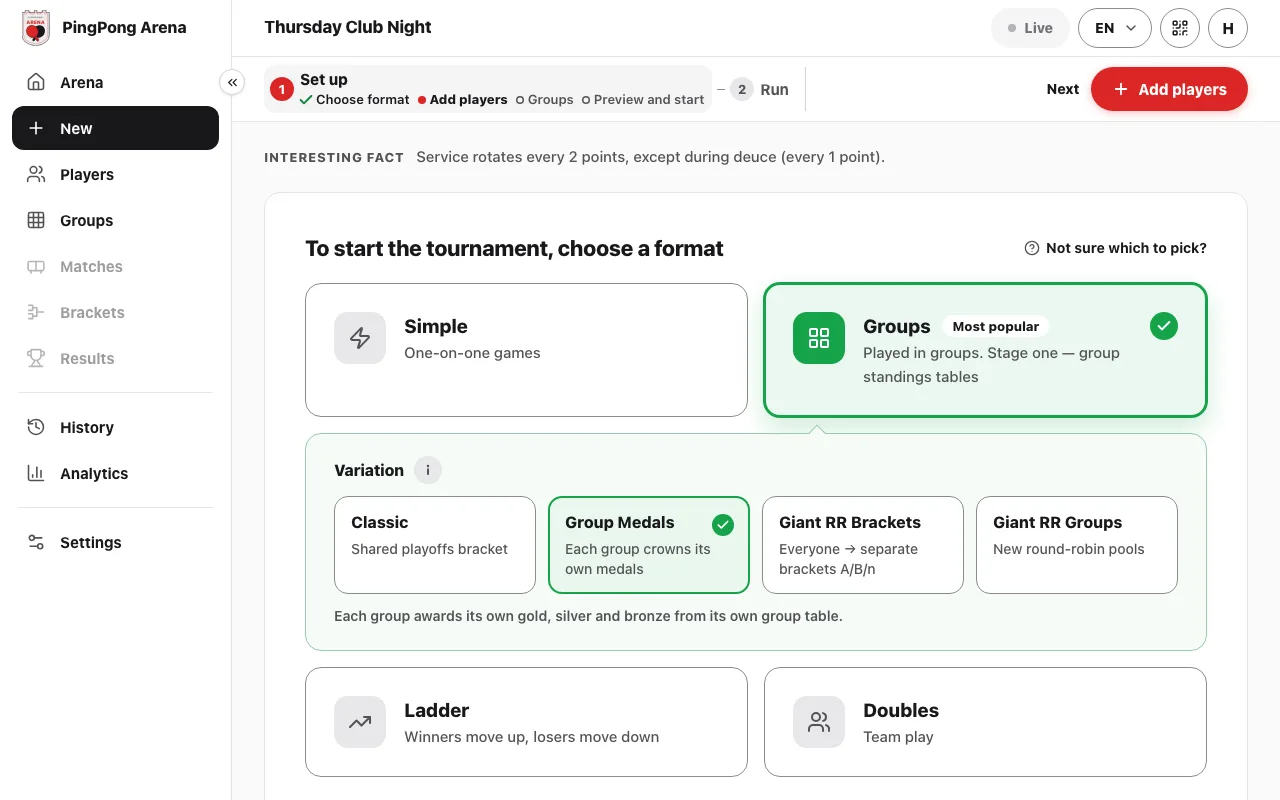
Open Arena and choose Groups. Under Variation, choose Group Medals ("Each group crowns its own medals"). The note under the cards confirms that each group awards its own gold, silver and bronze from its own table.
Then follow the steps bar: "Add players", "Groups", "Preview and start".
- "Add players": one by one, "Bulk paste" for a list, or "Quick add" for players from earlier tournaments.
- "Groups": Auto picks the number of groups; Custom lets you set it. With Group Medals the groups matter more than usual, because each group decides its own medals, so check the group lists on this step before you go on.
- "Preview and start": check the groups, tables and best-of settings, then tap "Start tournament".
Monitor — follow the tournament from Arena
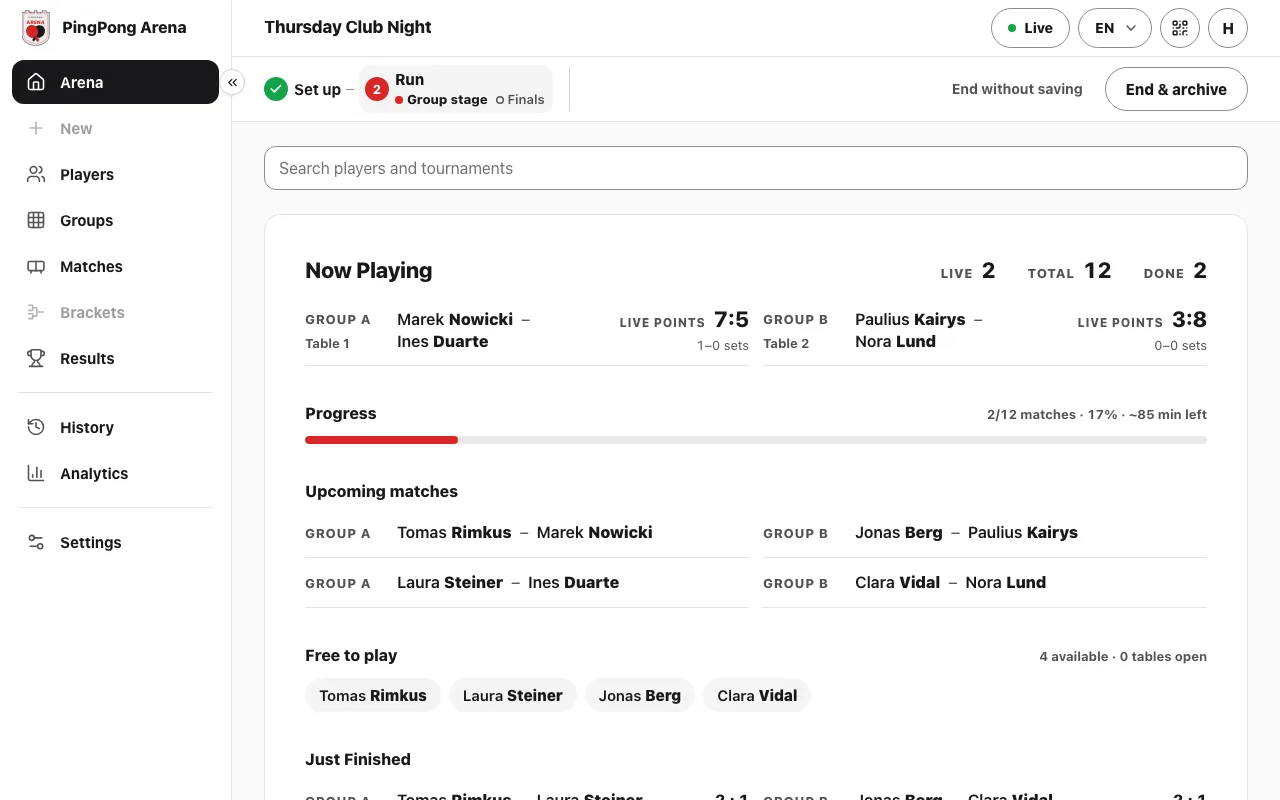
Once the tournament starts, the "Arena" item in the left menu is your control room. The top of the page says how many matches are live, how many there are in total and how many are done.
Below that you see every match being played right now with its table and live points, a progress bar, the matches coming up next, and a "Free to play" list of players who are not on a table. A short "Just Finished" list shows the latest results.
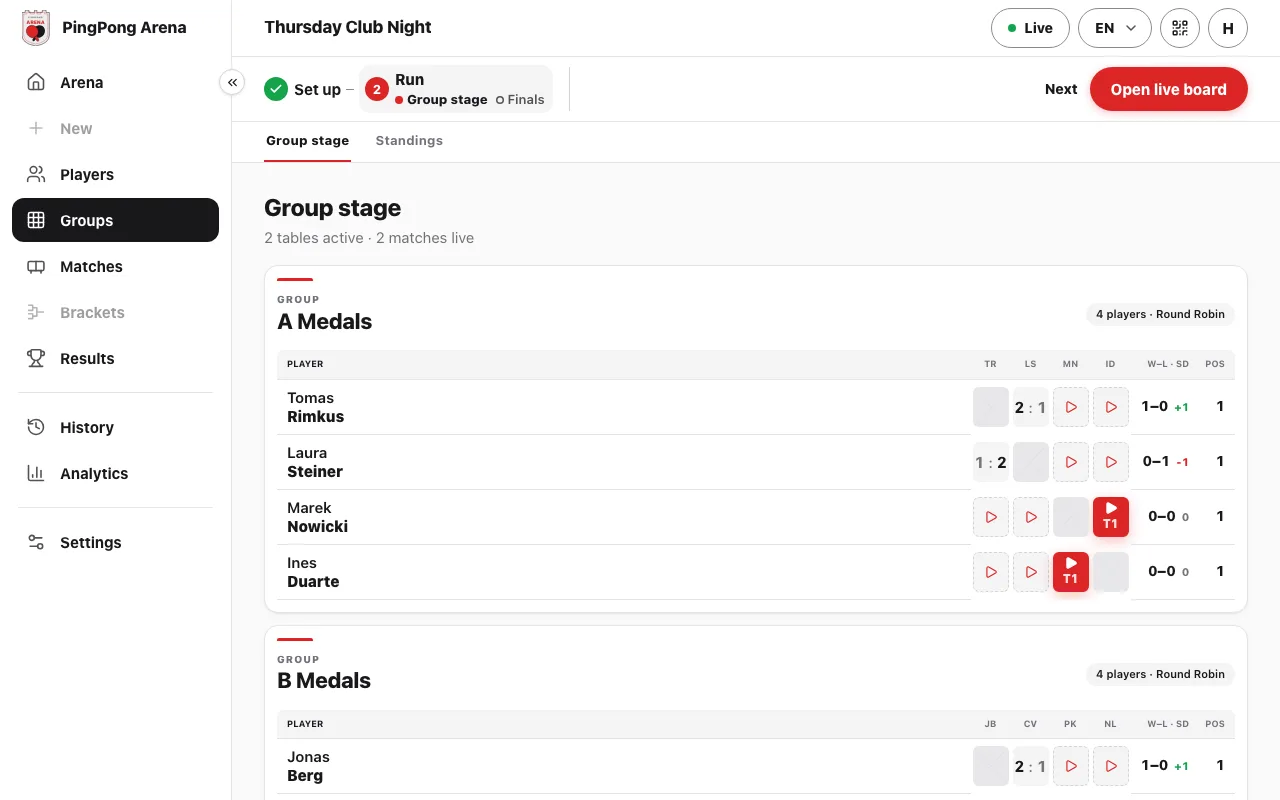
The "Groups" item in the left menu shows the group tables themselves (during the group stage, "Matches" opens them too). A red tile marked T1, T2… is a match on that table now; a finished cell shows the score; an empty cell with a play icon is still to be played.
- The steps bar at the top always shows where you are: "Set up", then "Run" with its stages ("Group stage", then "Finals").
- On every page except Arena, the right end of the steps bar shows "Next" and one red button for the next action, for example "Open live board". On the Arena page that spot holds the end controls instead.
- On a paid plan, "Share arena" (the QR icon in the top bar) gives players and spectators a link to follow the live results on their own phones.
Manage — scores, tables and changes
Tap a match in the group table to open it. The "Final Result" window lets you type in the sets when the players tell you the score; "Switch to Live Board" opens the live board instead, for scoring point by point at the table.
On the live board, tap "+1" under a player for each point. The small back arrow under each "+1" button takes a point away if you tapped by mistake. The set count and set history update on their own.
To leave a match, use "Back" next to "Next" in the steps bar, or your browser's back button: both take you back to the page you opened the match from.
- Match start: Automatic sends the next match to a table as soon as it is free; Manual waits for you.
- Order of play: drag a queued match onto another to swap their places, or drag a table tile (T1, T2…) onto another match in the same group to play that match on that table instead.
- Fix a result: tap a finished cell ("Edit result") and correct the sets.
- A player has to leave: open "Players" and withdraw them; the app asks you to confirm first.
End — archive the tournament, or end it without saving
When the last match is done, open Arena. The end controls sit at the right end of the steps bar: "End & archive" and "End without saving".
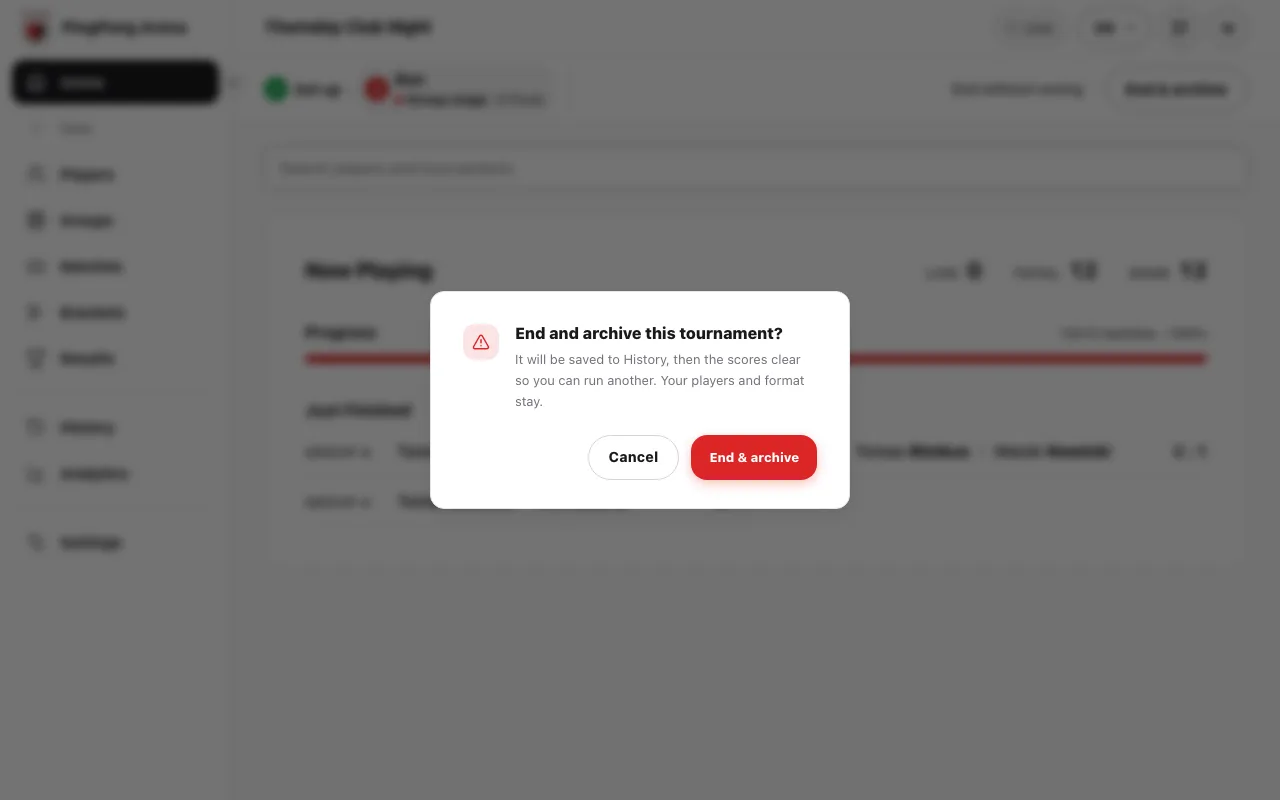
"End & archive" saves the tournament to History, then clears the scores so you can run another one. Your players and the format stay, so next week starts with the same roster. If some matches are unfinished, the app tells you how many and asks you to confirm before ending.
"End without saving" clears the tournament's scores and keeps no record. Use it for a test run or a tournament you started by mistake.
See each group's medals
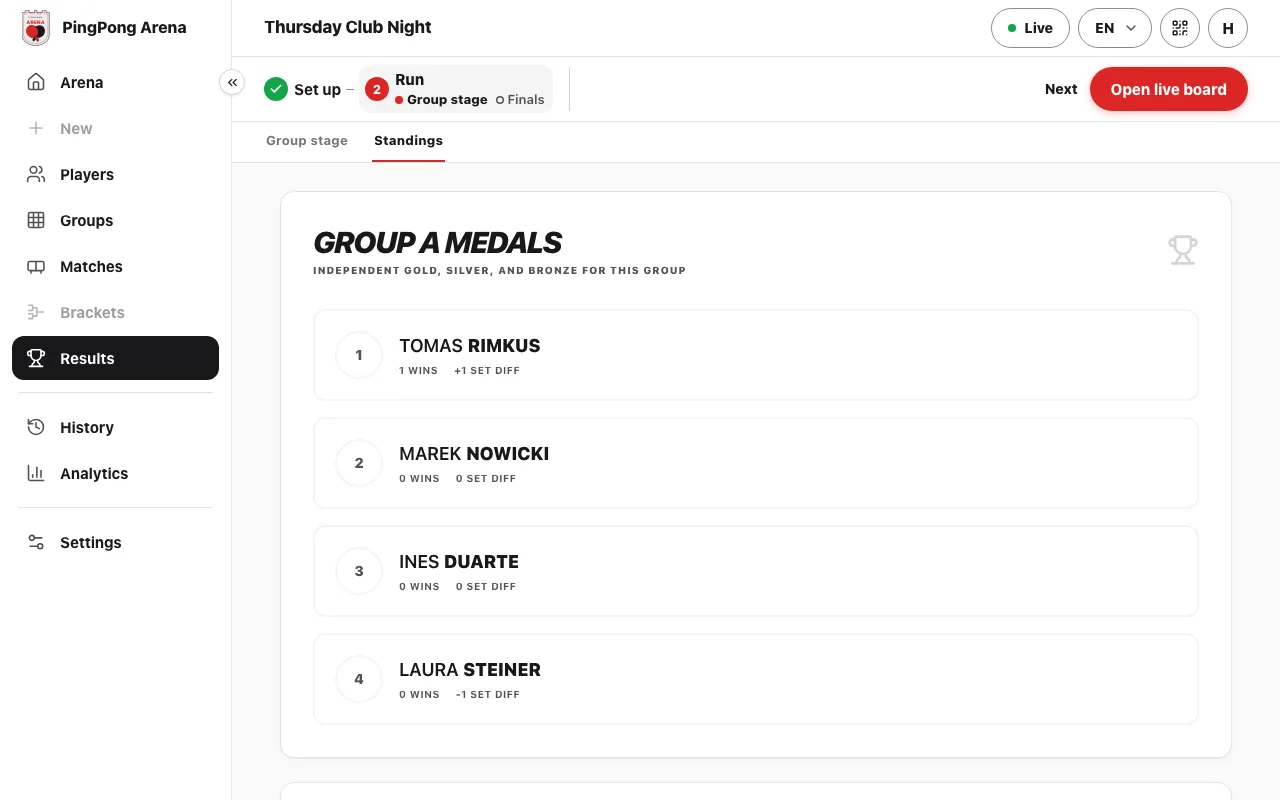
Open "Results", or the "Standings" tab under "Groups". With Group Medals each group gets its own table, for example "Group A Medals", with each player's wins and set difference. While the groups are still playing, it shows plain places 1, 2, 3, 4; once the group stage is finished, the top three are marked gold, silver and bronze.
Places inside a group are decided by match wins. Players with the same number of wins are ranked by the matches between them, then by set difference and point difference across the group; a decider match can settle what is still level.
History keeps every match with its set scores, and the "Report" button builds a summary you can share.
Common questions
How is Group Medals different from Classic groups?
Classic sends the top players of every group into one shared ping pong tournament bracket for the finals. Group Medals has no shared final: each group finishes on its own table and awards its own gold, silver and bronze.
Is Group Medals on the Free plan?
No. Group Medals is part of the Club plan. The €12 single-event pass also unlocks it for one tournament.
Can I change from Group Medals to Classic after starting?
No. The format and variation are fixed once matches exist. Decide before you tap "Start tournament", or end the tournament and set it up again.
How do I get out of a match I opened?
Use "Back" next to "Next" in the steps bar, or your browser's back button. Both return you to the page you opened the match from.
Someone tapped the wrong score. How do I fix it?
On the live board, the small back arrow under each "+1" button takes the last point away. For a finished match, tap its cell in the group table ("Edit result") and correct the sets.
What is the difference between "End & archive" and "End without saving"?
"End & archive" saves the tournament to History and then clears the scores; your players and format stay for next time. "End without saving" clears the scores and keeps no record.
Can players follow the results on their phones?
On a paid plan, yes. On Club, or with the €12 single-event pass, "Share arena" (the QR icon in the top bar) gives a link anyone can open in a browser to follow the live results. Share links are not included on the Free plan.