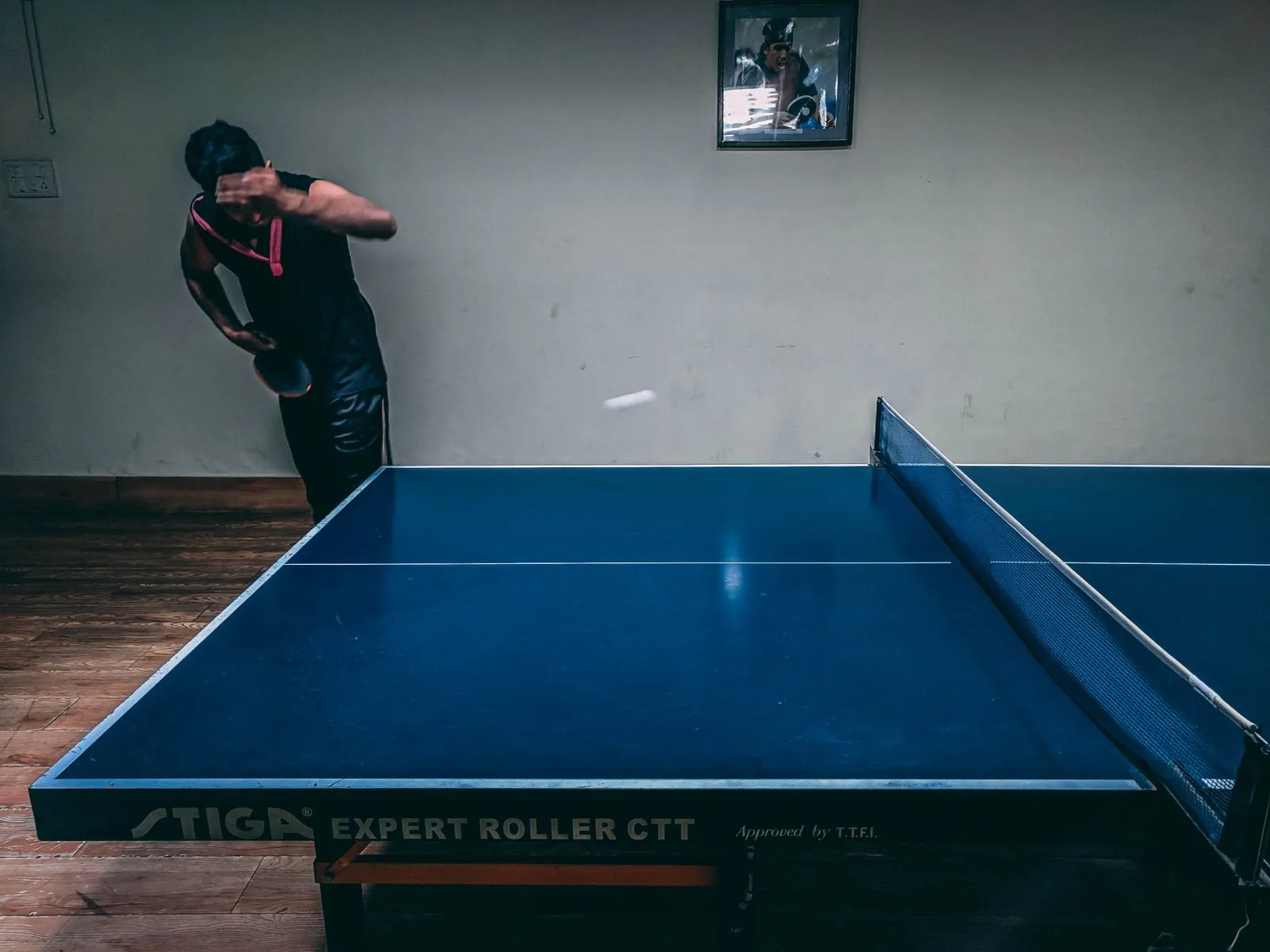
The difference between a casual knock-about and a night that feels like a real tournament is often one screen: a TV on the wall showing every match and the standings, updating the moment a point is scored. Players stop crowding the organiser to ask who is winning, who plays next, and what they need to qualify. It is all on the wall.
You do not need scoreboard hardware or a venue AV system to get there. This guide shows how to build a live TV scoreboard for a table tennis club night with the devices you already have: a TV, a computer or old laptop, and the phones in the room. The whole thing runs in a browser and works on the free tier.
1. What you need
Everything on this list is hardware a club, office or school already owns. There is nothing to buy and nothing to install. PingPong Arena runs in the browser on every screen.
- A TV. Any TV with an HDMI input works. A smart TV with a usable web browser can even skip the computer and load the page itself.
- A computer or old laptop to drive the TV over HDMI. An aging laptop that struggles with everything else is perfect for this job, since it only has to show one web page.
- A phone for the referee (or one per table) to enter points.
- Optionally a tablet, placed in landscape at the table as a big single-match scoreboard.
- A PingPong Arena account, free to start, no card needed.
2. The Free setup, step by step
On the Free plan (up to 16 players per event) everything runs on your own signed-in devices. There are no share links, so each screen signs into the same host account. One account can be signed in on several devices at once, and they all stay in sync live.
- Sign in at pingpongarena.app on the referee's phone and open your event. This is where points get entered.
- Connect the computer to the TV with an HDMI cable and set the TV to that input (or open the browser on a smart TV).
- On the TV's browser, sign in to the same account, then open pingpongarena.app/?view=true. The address with ?view=true on the end switches that screen into view mode: a live overview of every match with scores, search, and the standings context. You can also open it from the scoreboard's match tools (the viewer broadcast link).
- Press F11 on the computer to go full screen, so the whole TV is scoreboard.
- Optional: sign in on a tablet too, open the current match, and turn the tablet to landscape. That is the big single-match scoreboard, made to sit at the table.
- Score points on the phone. The TV overview and the tablet scoreboard update the instant each point goes in.
Set up a live scoreboard for your club night in 3 minutes
If you just want the wall lit up before players arrive tonight, skip the full walkthrough. This is the fast path using PingPong Arena itself.
What you actually need: a TV with a browser on it (via HDMI-connected laptop or the smart TV's own browser) and a working wifi/internet connection in the room. There's no app to install, no extra hardware, and no scoreboard rig to set up. Three minutes is a realistic estimate if the roster is already typed in before doors open.
- Create your tournament: sign in at pingpongarena.app and set up tonight's event (format, tables, whatever your club runs).
- Add your players: enter the night's roster as they check in, or ahead of time from your usual list.
- Open the scoreboard view on the TV: put a browser on whatever device is driving the TV (a laptop over HDMI, or the smart TV's own browser), sign in to the same account, and go to pingpongarena.app/?view=true. That is the live overview: every match, current scores, and standings, all on one screen.
- Score from a phone: enter points as they happen on the referee's phone, signed into the same account. The TV updates the instant each point goes in, with nothing to refresh.
3. The Club setup: one link per table
The Free setup scales as far as your own hardware does. With the Club plan (€19/month or €190/year), or the €12 single-event pass for a one-off, the setup scales past it, because helpers no longer need your account.
Each table gets an account-less scorer link: the referee at that table opens it on their own phone and scores, without signing up or installing an app. The whole room follows one read-only viewer link, on the TV and on spectators' own phones, showing live standings without exposing any organiser data. Afterwards, a shareable results report gives everyone the final standings and match history.
4. How the live sync behaves
Every screen is connected to the same event over WebSockets, so updates flow in well under a second. Tap a point on the referee's phone and the tablet scoreboard and the TV overview change before the players have reset for the next serve. There is no refresh button to press and no polling delay. If a screen is on and showing the event, it is current.
That also means the devices do not need to be near each other or on the same Wi-Fi: any internet connection works. A phone on mobile data scores just as live as the laptop on the venue network.
5. Troubleshooting
A few small device-side settings cause almost every problem with a screen that 'stops updating'. Check these before you suspect the network.
- The screen goes dark mid-match: on modern browsers (Chrome, Edge, Android, Safari 16.4+) the scoreboard and the live view keep the screen awake automatically while they are in the foreground. If an older device or browser still dims, disable auto-lock / screen sleep in its settings (usually Settings → Display) as a fallback.
- Keyboard or clicker presses stop scoring: the browser tab has lost focus. Click once on the scoreboard page to focus it again, and keep that tab in the foreground on any screen used for key scoring. The automatic wake lock also releases while the tab is hidden and comes back when it is visible again.
- Browser bars are eating the screen: press F11 for full screen on a computer; on a tablet, use the browser's "Add to Home Screen" option and launch it like an app for an edge-to-edge scoreboard.
- The TV shows one match instead of the whole room: that screen is on the single-match scoreboard, not view mode. Make sure the TV's address ends in ?view=true.
TV scoreboard — questions
Do I need a paid plan for a TV scoreboard?
No. On Free, sign in on the TV computer with the same account you score with and open view mode. That covers events up to 16 players on your own devices. Club (or the €12 single-event pass) adds account-less scorer links per table and a read-only viewer link for screens and phones that are not yours.
What does the TV actually show?
View mode: a live overview of every match in the event with current scores and standings context, updating the moment a point is scored. For a big single-match display, put a tablet in landscape at the table. That is the dedicated match scoreboard.
Does it need special hardware or an app?
No. Everything runs in a normal web browser. Any TV with HDMI plus any computer works, and a smart TV with a browser can load the page directly. Nothing to install on any screen.
Why did the TV stop updating halfway through the night?
Usually the page left the foreground or the device slept. The live view keeps the screen awake automatically on modern browsers while it is the visible tab; on an older device or browser that still dims, disable auto-lock in its display settings as a fallback. The live connection itself does not time out while the page is open.
Can I show scores from several tables at once?
Yes, that's what view mode is for. Open pingpongarena.app/?view=true on the TV and it shows a live overview of every match in the event at once, with current scores and standings context, not just one table. For a single match blown up big at one table, put a tablet in landscape there instead. That's the dedicated single-match scoreboard.
Does it work without internet?
No, an internet connection is required, scores sync via the server. Every screen (referee phone, TV, tablet) stays in sync over a live connection, and the devices don't even need to share the same Wi-Fi, just each needs its own connection.